
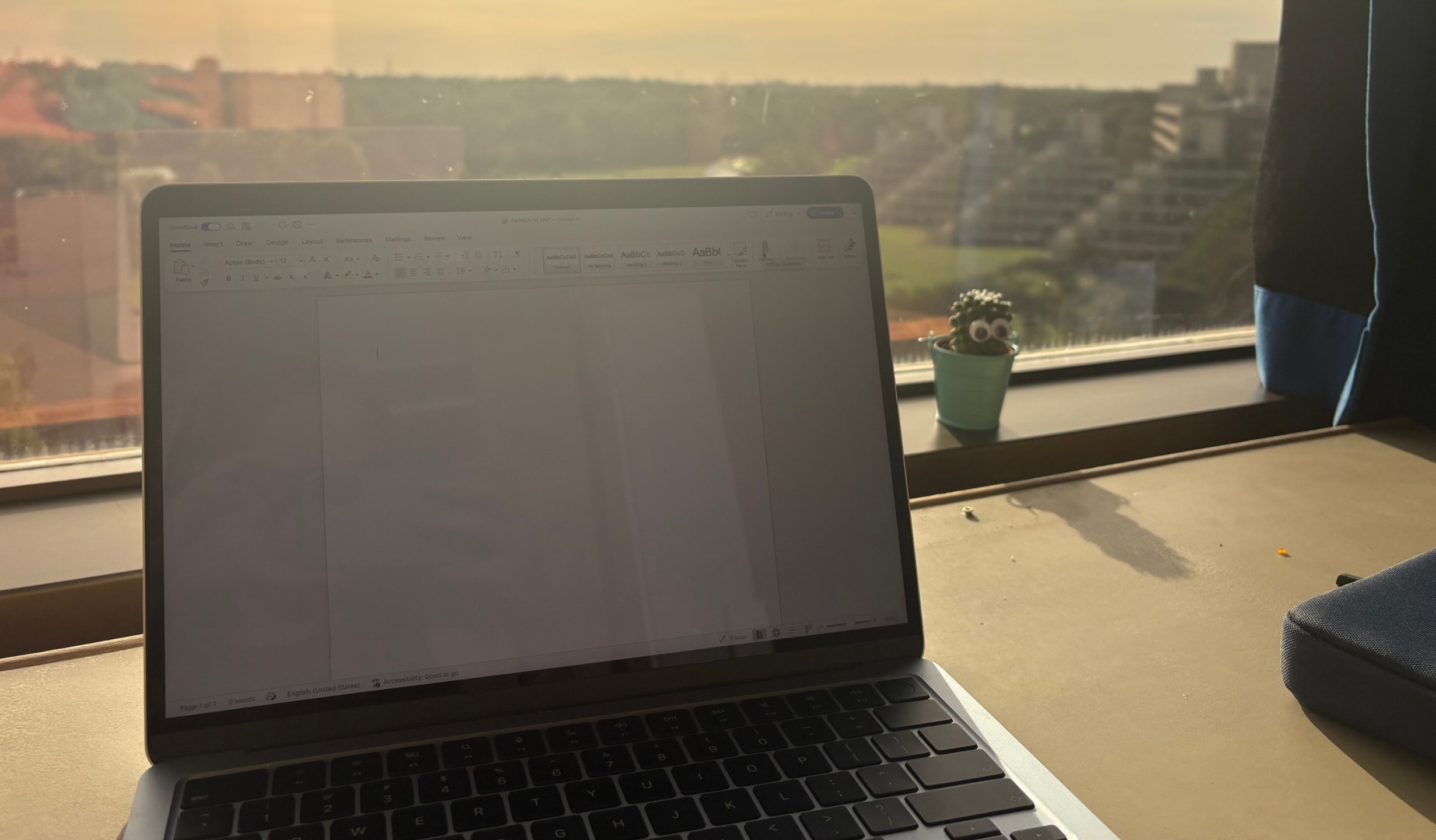
A recent review of Disabled Students’ Allowance (DSA) has led to many assistive software programs no longer being offered to students, since the government has determined that many free alternatives provide sufficient support.
But what are these free alternatives?
Well, here are some free-to-use apps and websites that might be worth knowing about.
Speech-to-text
DSA have decided that there are free, easy-to-use speech-to-text software and will only provide it where speech-to-text is the main way of typing. Most writing apps, such as Google Docs and Microsoft Word, have built-in speech-to-text features that you can use. Windows and Apple both also have speech-to-text features that can be accessed by pressing the Windows key + H if you’re on a Windows computer or the microphone key on a Mac.
Unfortunately, these features can often be quite inaccurate, especially if your subject involves a lot of complex terminology.
However, the voice-to-text feature on Microsoft Word has recently got an upgrade since Microsoft bought Nuance Communications, the creators of Dragon software. This was previously offered by DSA. It now includes auto-punctuation, higher accuracy and editing commands such as ‘delete that’ or ‘go to sleep.’ It’s best to try out the ones compatible with your laptop and see what works best, although always remember to check the words as you’re going along, as it can get words wrong or pick up bits of other conversations you don’t want in your essay!
Text-to-speech
This software will still be available through DSA for people with sight impairment, but there are some other options for anyone else who would benefit. Microsoft has a built-in text-to-speech feature on products such as Word and Outlook.
Windows also has a built-in screen reader called Narrator; however, you must adjust the settings to your preferences. Otherwise, every time you open a new app, it will read everything on screen. It has the same voices as Microsoft does, which some people can find too robotic and thus not very helpful. Apple has an equivalent called VoiceOver, which may be suitable for people with a MacBook.
Another completely free tool to access is called NVDA (non-visual desktop access), which is a highly regarded screen reader tool used by blind and visually impaired people. However, this is a Windows-only tool, meaning it doesn’t run on MacOS, IOS, or Android.
Article summariser and referencing software
Article summariser and referencing software was previously provided by DSA; however, after review, they determined that since the software was commonly used among students, there was no need for them to pay for it. There are free versions that may help.
Zotero is a free referencing tool for students. It can be added as a browser extension so people can upload documents at the press of a button, and it will go straight to the app. Citations can then be copied in your required style; you can also add notes to what you have referenced and organise references so different assignments can be separated. It also allows you to copy the whole reference list when you need to. Referencing sites may not always be accurate, so make sure to double-check everything.
Similarly, Scribbr has a lot of helpful articles about different referencing styles and how to cite different sources.
Scholarcy is a software that was previously offered by DSA and can summarise long, complex academic papers. It provides snapshots and summaries for different difficulty levels such as average reader, undergrad or expert. However, the free version does limit you to three uploads per day, and you can’t save flashcards.
Scispace also offers a paper search tool similar to Google Scholar, just with less access to papers. When you upload your PDF, you can ask the software to summarise it or you can ask questions about the content.
TLDR is another option for creating artificial intelligence summaries of academic papers, URLs and plain text. It also has a browser extension for getting summaries at the click of a button. However, it does have a cap of five summaries per day and doesn’t work with PDFs yet.
Lecture recording and transcription
This type of software allows you to record the lecture alongside the slides so you can go back over the lecture, keeping up with which slide a professor is referring to, and transcribe it. The university does record lectures and upload them to Blackboard; however, there are drawbacks. For example, recording usually starts and ends automatically, so if the lecture starts early or runs over, you may miss bits. Note-taking features are also unavailable.
HappyScribe is a free-to-use lecture recorder and transcriber, although it does have a premium paid version. However, the free version still offers unlimited recordings and transcriptions of lectures, as well as summarising recordings, to help you go over lectures. The summariser is an AI tool, so be careful when it comes to accuracy.
One option that was recommended to me by a friend is called Turbo AI which can record lectures and take notes, turn lectures or uploaded PDFs into practical flashcards, and create quizzes. There is a premium tier, but the free version offers a lot. However, the biggest downside for this is the AI. While AI can be useful in some circumstances, and a lot of previous DSA-recommended software is run with AI, it is known for its inaccuracies and occasionally makes things up. Therefore, when using any software that runs with AI, be wary of mistakes and double-check what it says before using it in your work. GoodNotes and Otter AI are apps like this.
Mind-mapping software
If you prefer to draw out your mind maps by hand, Canva may be useful for that. Whilst not specifically for mind mapping, Canva can be good for touchscreen laptops as you can draw directly onto the screen and save them. Whilst it does have premium features, they are in no way needed for creating simple mind maps.
Other, more structured alternatives include Freemind, a completely free tool that runs offline and Xmind, a desktop app with a good range of free features.
Captioning software
This is only likely to be provided if the needs of the student supersede what is considered reasonable for the university to provide; many universities are expected to offer live captioning. UEA offers this as a reasonable adjustment. Some subjects may offer this automatically, although sometimes you may need to request it (and I have had lecturers forget to use it, so make sure to ask if you benefit from it.)
Spelling and grammar checkers
DSA has not provided these for a couple of years as they found there are suitable, free alternatives. These options may include: Grammarly free version, which does live spellchecking and can be added as a Word or Chrome extension.
Scribbr spellchecker corrects mistakes and requires no sign-up. It automatically finds mistakes and directs you to them so you don’t have to scroll; however, documents must be uploaded to their website, so it doesn’t do live spellchecking.
QuillBot also doesn’t require sign-up and can be added as a Chrome extension for people who write on Google Docs. Each of these do have premium versions that you can upgrade to; however, the free versions are all sufficient for spellchecking.
Hopefully these examples of free-to-use software will be useful for your studies and will be able to replace some DSA software that is no longer being provided. There are other alternatives out there, but we couldn’t cover them all in this article. If you think you would benefit from other types of software, try doing some research into what would be the best fit for you.
Image credit: Charlotte Ward



Leave a Reply